
Top rated by 500+ clients
★★★★★
Pesticide Shop Software
Running a pesticide Shop business comes with its unique challenges. Managing daily transactions, controlling accounts, tracking stock, monitoring sales, processing payments, and keeping up with batch numbers and expiry dates can be overwhelming. However, there's good news! A groundbreaking solution exists to alleviate these burdens and help you effectively manage your pesticide business. Introducing our software solution tailored specifically for the pesticide industry. We have reliable pesticide shop software that helps you to manage daily activities.
How to add & manage Products in Add Product

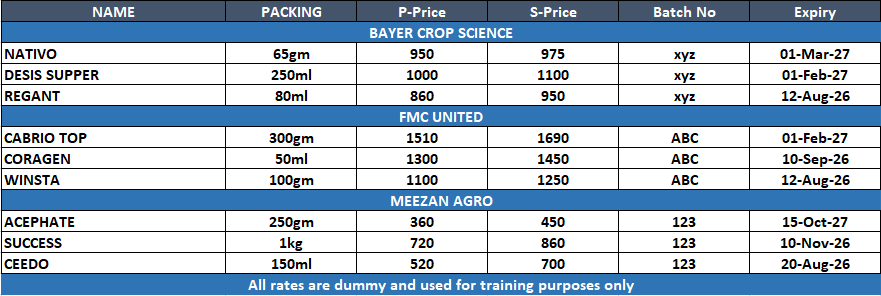
Dear User, in our software you found multiple options to add products. You can add products in New Products, Company wise, Edit Products. You can use any option. before adding product in software batter create a manual list as we shown in picture. This will helps you to avoid mistakes and duplicate entries.
1 - How to Add Product
2 - How to Edit Product
3 - How to Delete Product
4 - How to Add Product Batch Number
Click Name filed under product details section and enter product name. Press enter add pack size of prduct like if a product packing is 100gm then type 100 in pack size and press enter then select unit as gm in the unit list.
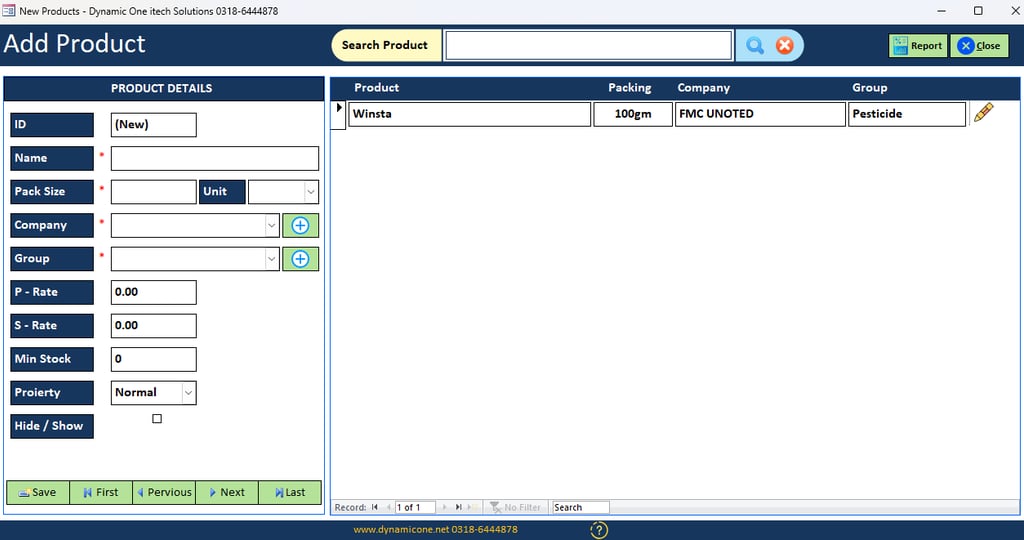
For adding product in New Product open products menu and click new product you will see a new product form as we show in picture.
Then select company in dropdown list. if you want to add new company here just click + icon. company form will open you can add new company here.
Then select Product Group by default you will find three groups Pesticide, Fertilizer, Seed in this list. You can add multple group if you want by clicking on + icon.
Enter product purchase price & sale price.
Enter product minimum stock quantity.
Select product proierty. This feature will helps you to Remind seasonal item or near expiry items that you can manage.
Click pencil icon called ( Option button ) you will see Edit , Delete, Batch No, Show ledger options in it. click edit you will see all product detail in product details section. you can edit any field you want then click save button.
Click pencil icon called ( Option button ) you will see Edit , Delete, Batch No, Show ledger options in it. click delete you will see a delete confirmation dialog box enter software password and press delete. to cancle this action press close.
Click pencil icon called ( Option button ) you will see Edit , Delete, Batch No, Show ledger options in it. click batch No you will see a batch No adding form will apear. Directly click on batch Number filed and enter batch no then press press enter and Add expiry date.
Hide tick box wil remain untick on adding a new product. you can hide any product in future if product will close.
How to add & manage Products in Company wise

Dear User, in our software you found multiple options to add products. You can add products in New Products, Company wise, Edit Products. You can use any option. before adding product in software batter create a manual list as we shown in picture. This will helps you to avoid mistakes and duplicate entries.
1 - How to Add Product
2 - How to Edit Product
4 - How to Add Product Batch Number
To add products in company wise form first select company from dropdown menu . then Click Name filed and enter product name. Press enter add pack size of prduct like if a product packing is 100gm then type 100 in pack size and press enter then select unit as gm in the unit list.
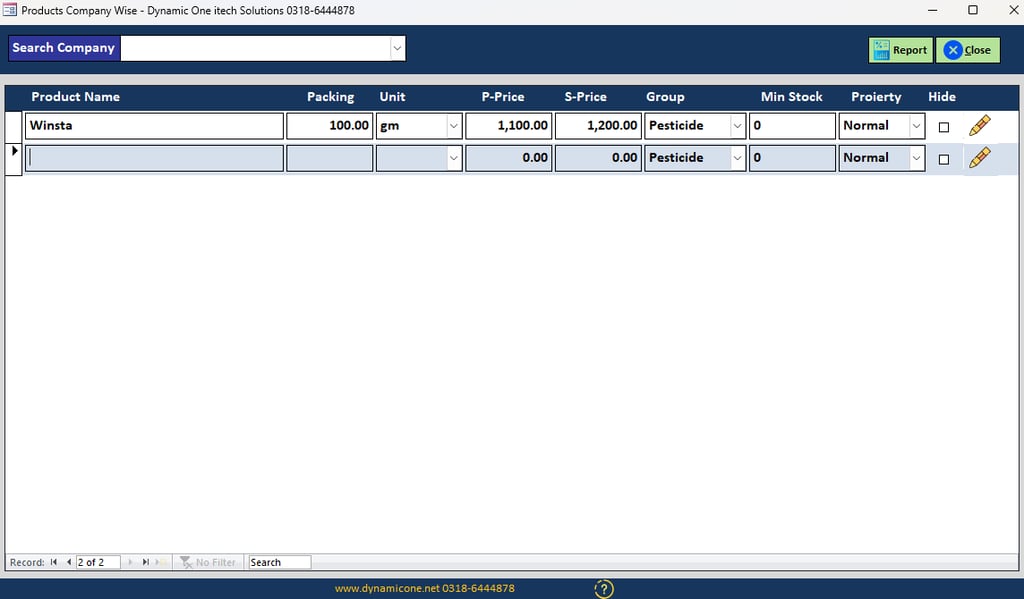
For adding product in Company wsie open products menu and click Company wise you will see a company wise form as we show in picture.
Then select company in dropdown list. if you want to add new company here just open dropdown menu at the last you will see Edit item list option. click and add company here.
Then select Product Group by default you will find three groups Pesticide, Fertilizer, Seed in this list. if you want to add new groud here just open dropdown menu at the last you will see Edit item list option. click and add group here.
Enter product purchase price & sale price.
Enter product minimum stock quantity.
Select product proierty. This feature will helps you to Remind seasonal item or near expiry items that you can manage.
To edit products in company wise section just click on that filed you want to edit. you can directly edit anything on this form.
Click pencil icon called ( Option button ) you will see Delete, Batch No, Show ledger options in it. click delete you will see a delete confirmation dialog box enter software password and press delete. to cancle this action press close.
Click pencil icon called ( Option button ) you will see Delete, Batch No, Show ledger options in it. click batch No you will see a batch No adding form will apear. Directly click on batch Number filed and enter batch no then press press enter and Add expiry date.
Hide tick box wil remain untick on adding a new product. you can hide any product in future if product will close.
3 - How to Delete Product
How to add & manage Products in Edit Product

Dear User, in our software you found multiple options to add products. You can add products in New Products, Company wise, Edit Products. You can use any option. before adding product in software batter create a manual list as we shown in picture. This will helps you to avoid mistakes and duplicate entries.
1 - How to Add Product
2 - How to Edit Product
3 - How to Delete Product
4 - How to Add Product Batch Number
This form will open in locked position. you can not add or edit products directly. To add products here just click edit button on this form a dailog box will open enter software password. it allows you to add products here. Click name filed and enter product name.
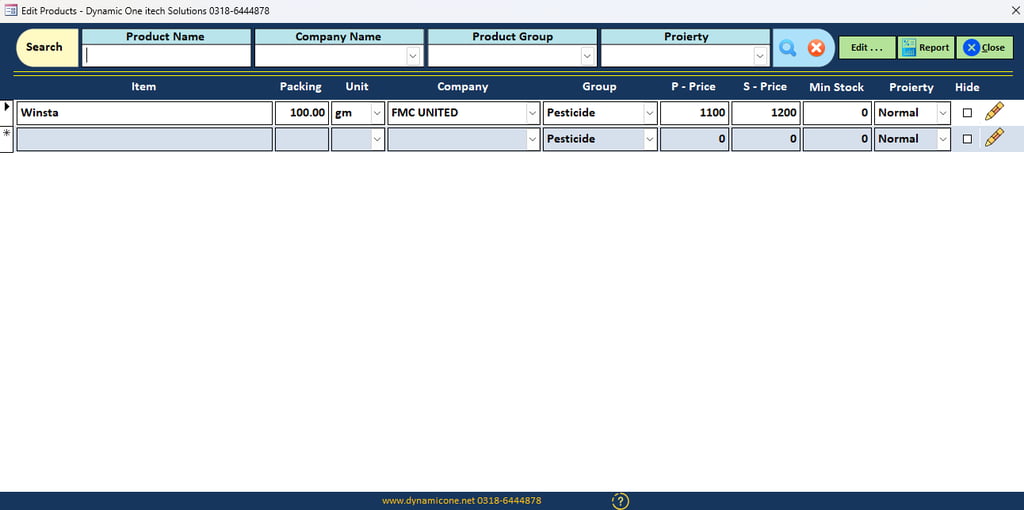
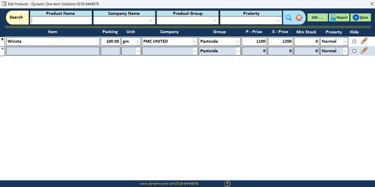
For adding product in Edit Products open products menu and click Edit Product you will see a form as we show in picture.
Then select company in dropdown list. if you want to add new company here just open dropdown menu at the last you will see Edit item list option. click and add company here.
Then select Product Group by default you will find three groups Pesticide, Fertilizer, Seed in this list. if you want to add new groud here just open dropdown menu at the last you will see Edit item list option. click and add group here.
Enter product purchase price & sale price.
Enter product minimum stock quantity.
Select product proierty. This feature will helps you to Remind seasonal item or near expiry items that you can manage.
To edit single product click pencil icon and select edit. you will see a form will open with product details. you can edit anything on this form and save it again.
Click pencil icon called ( Option button ) you will see Edit, Delete, Batch No, Show ledger options in it. click delete you will see a delete confirmation dialog box enter software password and press delete. to cancle this action press close.
Click pencil icon called ( Option button ) you will see Edit, Delete, Batch No, Show ledger options in it. click batch No you will see a batch No adding form will apear. Directly click on batch Number filed and enter batch no then press press enter and Add expiry date.
Press enter add pack size of prduct like if a product packing is 100gm then type 100 in pack size and press enter then select unit as gm in the unit list.
To edit multiple products click edit button on this form and enter software password. now you can directly edit any detail about products.
Hide tick box wil remain untick on adding a new product. you can hide any product in future if product will close.
How to Add & Manage Product Groups
Dear User, in our software you can add & manage products by their groups. by default you found three groups Pesticide. Fertilizer, Seed in it. but you can add multiple groups if you want. it will helps you orginzed stock in a batter way.
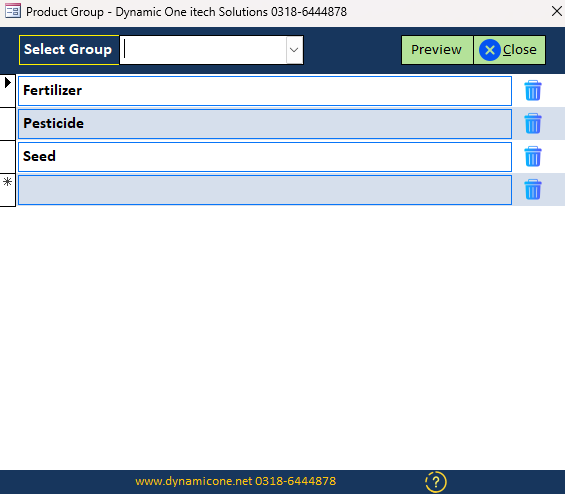
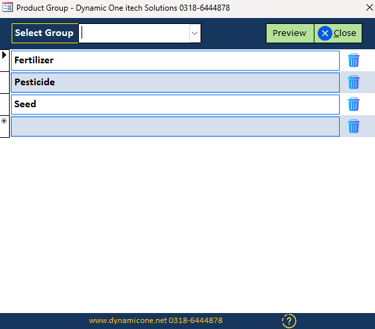
1 - How to Add Groups
Click on the empty line under the group list and add group. You can add multiple groups.
2 - How to Delete Group
Click delete icon next to that group you want to delete. you will see a confirmation massage click yes to delete. and no for cancel that action.
How to Add & Update Batch Numbers

Dear User, You can manage batch No in Batch No section under the products menu.
Contact Us
Our Services
Quick Links
Dynamic One
0318-6444878
Muhammad Arif
© 2025 Dynamicone.net All Rights Reserved!